
Guide · Importing
Converting ZTL and ZPR files to OBJ or STL
Opening ZBrush .ztl and .zpr files without ZBrush and exporting them as OBJ, STL, FBX or glTF for Blender, a slicer or another app.
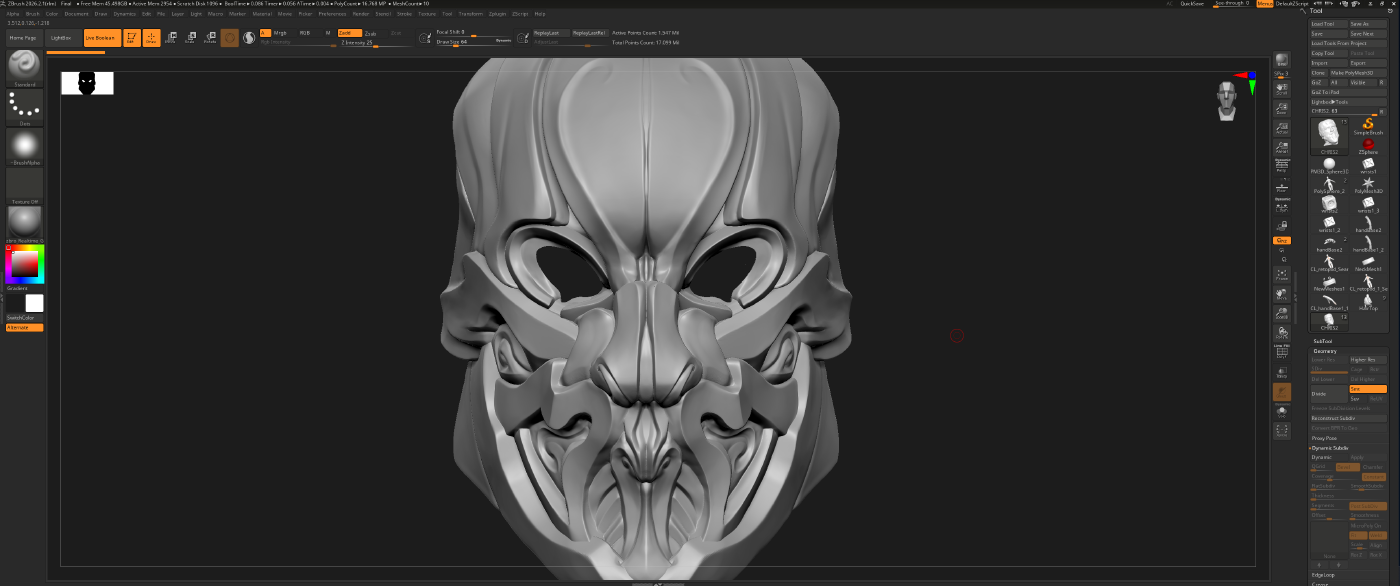
A ZBrush .ztl tool or .zpr project normally opens only in ZBrush. Blender cannot read either format on its own, and the usual bridges, GoZ and the add-ons built on it, need ZBrush running on the same machine. If your subscription has lapsed, or you have moved to Linux, the sculpts inside those files can feel stuck.
The good news is that they are not. RZ-7 Jackal reads both formats directly and writes OBJ, STL, FBX, glTF, GLB, USDA and USDZ, and the whole conversion happens on your machine. Nothing is uploaded anywhere.
Converting a file
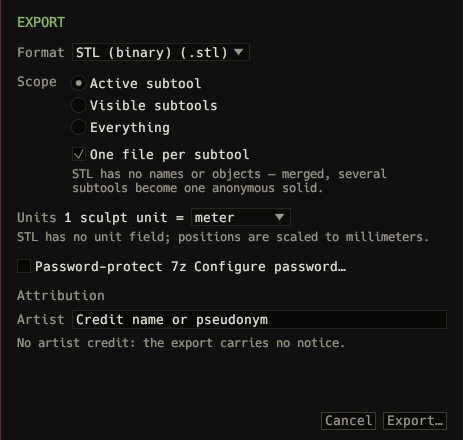
In Jackal, open the File menu in the top bar and choose Import, then pick your .ztl or .zpr file. Each ZBrush subtool becomes one Jackal subtool, at the subdivision level you were sculpting. When you are ready to export, open the File menu again and choose Export. In the Export dialog you can choose a Format, a Scope and, where the format has one, Units. Then choose Export… and pick where to save.
Picking a format
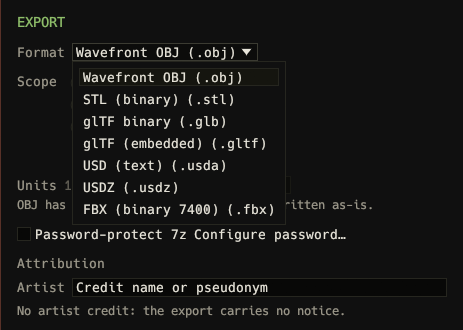
For Blender, OBJ, FBX or GLB all work nicely, and all three keep subtool names and polygroups. FBX and GLB also carry scale, so the model arrives at the size you meant.
For a 3D printer, STL is the format you want. It is worth reading Exporting a sculpt for 3D printing first, though: STL has no names and no units, and Jackal handles both for you in ways worth knowing.
For another sculpting or modelling app, OBJ or FBX will serve you well, since every app in this space reads at least one of them. And for a USD pipeline or Apple’s AR Quick Look, you can use USDA or USDZ.
Units
The Units row reads “1 sculpt unit =” followed by a choice of millimeter, centimeter, meter, inch or foot. What happens with it depends on the format you chose.
OBJ has no unit field, so positions are written as they are and the Units row is greyed out. STL has no unit field either, so positions are scaled to millimeters, which is what every slicer expects. glTF and GLB are meters by specification, and positions are scaled to match. FBX and USD record the unit in the file and leave positions unchanged.
One thing ZBrush files do not tell you is how large the model is in the real world. If the size matters for your work, it is worth checking it in the app you open the export in.
What comes across
Geometry at the stored subdivision level, masks, polygroups and subtools all make the trip. UVs, polypaint, sculpt layers and ZSpheres do not, so they will not be in the export either. Opening ZBrush files lists every detail, including how polygroup borders can shift by one row of vertices.
Quads are split into triangles on import, so every export is triangles. The journal entry Triangles and hard normals explains why a triangle export looks the same in every app that opens it.
Keeping the originals
Import is one way; Jackal does not write .ztl or .zpr. It is a good idea to keep the ZBrush files alongside your exports in case you ever need what did not come across.
If you are working with an alpha build that has expired, you can still import, open and export; only sculpting and editing stop. Converting your files does not depend on keeping a build current.