

Guide · File security
Password-protecting files
Setting a default file password in RZ-7 Jackal, protecting a single scene, and locking an export in an encrypted 7z archive.

RZ-7 Jackal can lock a .jackal scene with a password. You can set a password once for every new document, or protect one scene at a time. Both live in the File Security panel. Exports can be locked too, inside an encrypted 7z archive.
Open it with Ctrl+Shift+L.
Before you start
A forgotten password cannot be recovered. There is no reset, no account and no back door, by design. Keep the password in a password manager.
Set a default file password
- Open File Security and go to Default file password.
- Enter the password twice.
- Under Remember, choose how long the app holds it:
- This session. Kept in memory until you quit. You enter it again next launch.
- OS credential store. Saved in your system’s keychain or secret service.
- Tick Protect new documents with this password if you want every new scene locked from its first save.
- With the credential store, you can also tick Unlock automatically on this device. The system asks for access the first time it is used, not at launch.
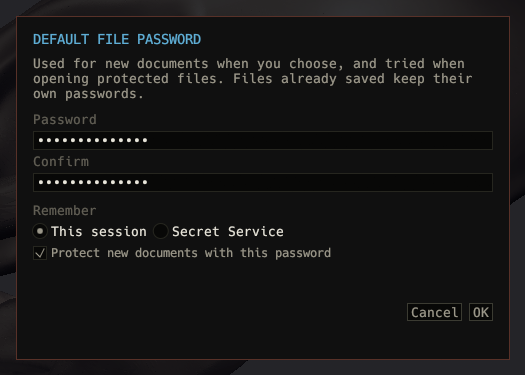
Once a default is set, saving and opening protected files does not prompt you again during the session.
Protect one scene
With the scene open, go to This document in File Security and choose:
- Protect with default to use the default password.
- Protect with a new password… to give this scene its own.
The panel shows the document’s state: Password-protected or Not password-protected. From there you can also change the password or remove protection.
Open a protected scene
Open it as usual. If the app holds the right password, the scene loads. If not, a Password required prompt appears.
Autosave follows the document. A protected scene’s autosave is protected too, and crash recovery asks for the password before restoring anything.
Protect an export
OBJ, STL and the other export formats have no encryption of their own. Jackal can put the export inside a password-protected 7z archive instead.
- Open the File menu and choose Export.
- Set the format and units as usual.
- Tick Password-protect 7z.
- Choose Export… and pick where to save.
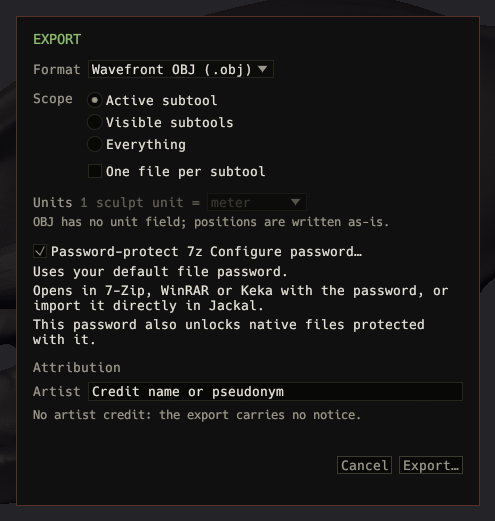
The archive uses the same password as the scene: this document’s save password if the scene is protected, or your default file password if it is not. If neither is unlocked yet, Export… opens File Security first. Configure password…, beside the checkbox, opens File Security at any time.
The archive is AES-256 encrypted, and the names of the files inside are encrypted too. It opens in 7-Zip, WinRAR or Keka with the password, and Jackal can import it directly. Windows File Explorer may not open an encrypted 7z, so a recipient on Windows needs 7-Zip or WinRAR.